
Building Virtual Machines on DaDesktop Using Virt Manager
Overview
When developing a training course, it can be beneficial to run a virtualized server inside DaDesktop, and possibly also set up one or two client VMs in a similar fashion, using the same operating system or a combination of Windows and Linux.
Creating 'Nested VMs' is possible either with Virt Manager or VirtualBox, coupled with Vagrant if you're on Linux, or simply VirtualBox on a DaDesktop machine running Windows 10.
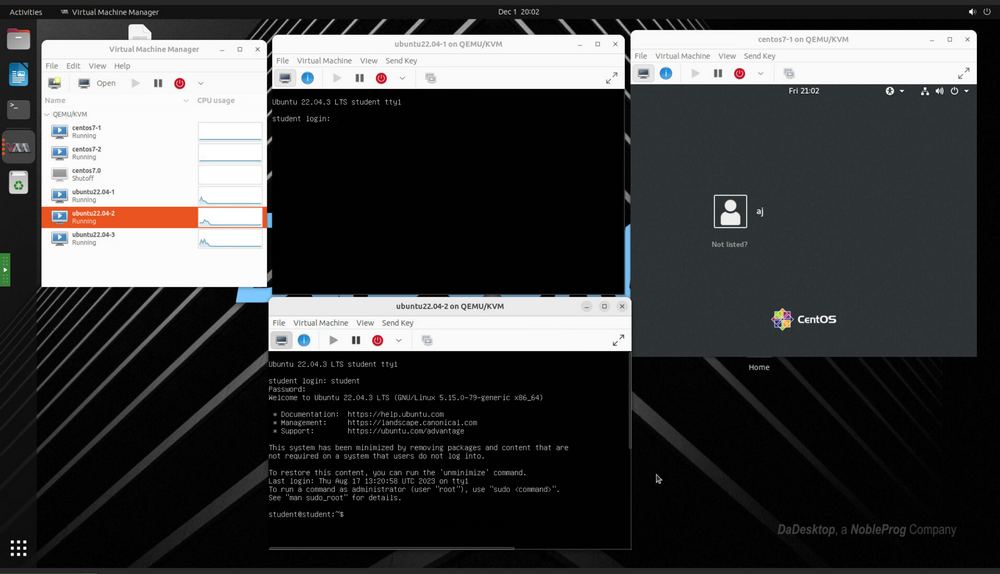
Our extensive testing has shown that Virt Manager is the preferred choice, since VirtualBox introduces a few bugs; thus, at this time we do not recommend using VirtualBox for this purpose.
Virt Manager leverages the libvirt library to offer VM management capabilities. Its graphical desktop interface makes it straightforward to create, remove, and oversee numerous virtual machines. While it's mainly utilized for KVM-based VMs, it also accommodates other hypervisors like Xen and LXC.
Virt Manager integrates excellently with Vagrant as well—just run:
apt install vagrant-libvirt
It should be noted that fewer Vagrant boxes are available for libvirt/KVM versus VirtualBox, but they can be readily adapted to function with libvirt, as illustrated here:-
https://medium.com/@gamunu/use-vagrant-with-libvirt-unsupported-boxes-12e719d71e8e
The user interface presents a consolidated overview of all VMs—their status, CPU usage, live performance graphs for active VMs, and resource consumption metrics.
If you're new to Virt Manager, you'll find it quite similar to VirtualBox, though with a handful of key distinctions outlined below.
Here is a helpful guide on using virt-manager with Ubuntu Linux: https://www.debugpoint.com/virt-manager/
Why Choose Virt Manager Over VirtualBox?
Benefits
- Superior performance – Virt Manager employs VirtIO drivers for storage, networking, and graphics, delivering noticeably better speed. Virtio drivers are KVM's paravirtualized device drivers, available for both Linux and Windows guest VMs running on KVM hosts. The virtio package covers block devices (storage), network interface controllers, and graphics. Since VirtIO drivers are open source, installation is straightforward if they aren't already bundled with your Linux distribution.
- More extensive configuration choices
- Seamless integration with Vagrant
- Certain components of VirtualBox are not entirely open source
- Unlike VirtualBox, Virt Manager does not require module recompilation after each kernel upgrade.
- VirtualBox occasionally breaks following a required kernel update.
Drawbacks
- VirtualBox arguably has a somewhat gentler learning curve.
- Configuring host networking instead of NAT is simpler with VirtualBox; however, NAT is sufficient and easy to set up on both platforms for most networking scenarios.
- VirtualBox runs on a wide range of platforms, whereas Virt Manager is exclusive to Linux.
Overall, we've found Virt Manager to be the better choice when running servers inside a DaDesktop environment.
Installation
As libvirt is constantly being enhanced, always opt for the most recent non-LTS release of Ubuntu or Debian.
To install KVM and virt-manager, use these condensed instructions; however, it's best to refer to a current guide tailored to your DaDesktop operating system. One such guide is available at https://www.debugpoint.com/virt-manager/
sudo apt install virt-manager
sudo adduser student libvirt
sudo systemctl restart libvirtd
After that, reboot the DaDesktop machine and launch Virt Manager from the Applications menu.
Configuration
-
How can I import or convert virtual machines? While creating VMs from scratch with your desired OS and specs is straightforward, complex configurations often benefit from importing an existing VM setup for a specific server or appliance. These are frequently provided as VMDK images, which can sometimes be added directly to Virt Manager—though this isn't guaranteed with the current version. VirtualBox server images cannot be directly imported into Virt Manager, but they can be easily exported to other virtualization formats like Open Virtualization Format (.OVF), which Virt Manager handles without trouble. Alternatively, you could use VMware Converter if available, or the virt-v2v tool (https://www.redhat.com/en/blog/importing-vms-kvm-virt-v2v). Qemu-convert is another excellent open-source utility for converting between various VM formats.
To migrate from VirtualBox to Virt Manager's KVM format, follow these steps: https://ostechnix.com/how-to-migrate-virtualbox-vms-into-kvm-vms-in-linux/ -
Optimal method for importing large files into the standalone environment. A new feature now allows you to conveniently upload files from your local machine into your DaDesktop box.
Alternatively, you could use cloud storage services like Google Drive or Microsoft 365, which you can access by logging in within the DaDesktop session.
- When importing VMs from different formats, you'll often need to adjust graphics and/or disk types. A major strength of Virt Manager is its superb support for VirtIO drivers—open-source, fully virtualized drivers that significantly outperform traditional disk, network, or graphics drivers. They are available for nearly every operating system, including first-class support for Windows 10 guests. If your guest OS supports them, VirtIO drivers are generally the best choice for both compatibility and performance under Virt Manager (KVM). https://wiki.archlinux.org/title/Libvirt
-
Recommended settings for VMs under Virt Manager: Nowadays, VirtIO drivers come preinstalled in almost all open-source server operating systems, and they can be easily added to Windows. In most situations, virtio is the optimal driver, though other types may be appropriate for specific cases. NAT typically handles most networking needs, but if a more complex arrangement requires bridged host networking, be aware that it is generally more challenging to set up correctly.
For an excellent beginners' guide, see https://wiki.manjaro.org/index.php?title=Virt-manager.
Windows 10 guests require additional steps, including slipstreaming the VirtIO drivers into the ISO to make it bootable.
Regarding disk format, choose .raw for best speed unless you need snapshots—in that case, use qcow2, which imposes a slight performance penalty. - While Wayland generally performs well as a display manager, we recommend sticking with X11 for the time being. Nevertheless, you might test Wayland for your own configuration, as distributions are steadily improving its support.
- There's no need to enable KSM—while it does work in nested environments and with Virt Manager, it provides negligible practical benefit.
- Technical Support is on hand if you need assistance converting disk images for Virt Manager or configuring Virt Manager for your DaDesktop-based training courses.
-
Where are disk image files stored in the filesystem? Virt Manager defaults to the following directory for storing image files, though you can change this and use other paths if you like.
/var/lib/libvirt/images