Continue Using Your Desktop After the Course
One handy DaDesktop capability lets participants keep working on their course machine for practice even after the course concludes. Shortly before the course ends, they receive an email asking if they'd like to continue using that desktop.
Typically, a participant’s course desktop gets deleted soon after the course finishes. But if you want to continue practicing with the lab exercises, you can clone it into a 'Standalone Desktop' for later access.
To do this, head to your Course and Desktop machine, and click the 'Use desktop after course' button by your machine.
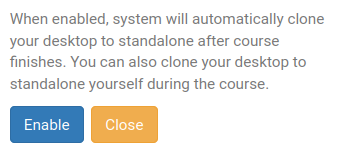
From there, DaDesktop walks you through a straightforward process and lets you 'Enable' the cloning.
After you enable it, you'll see a confirmation like this next to your course machine.

Once the course ends, access your Standalone machine by clicking the Standalones menu at the top of your screen.
Standalone machines that sit idle for a month are automatically removed, but users receive an advance email notification to give them plenty of time to take action if they'd like to keep using any machines.
For more on managing your Standalone machine's retention, check out this page.