
Scheduling and Cancelling Deletion of Standalone Machines
What makes the deletion schedule relevant for you?
If you rely on a Standalone machine to carry on with lab work from a past course, or if you're a trainer setting up a course, this likely isn't something that concerns you.
However, to manage system resources more efficiently, standalone machines across Germany that remain inactive for more than a month will be automatically scheduled for deletion, with a reminder sent 7 days prior.
You can also cancel this deletion schedule.
How to manually schedule deletion of a standalone machine.
- When setting up a standalone desktop, you can specify a deletion date.
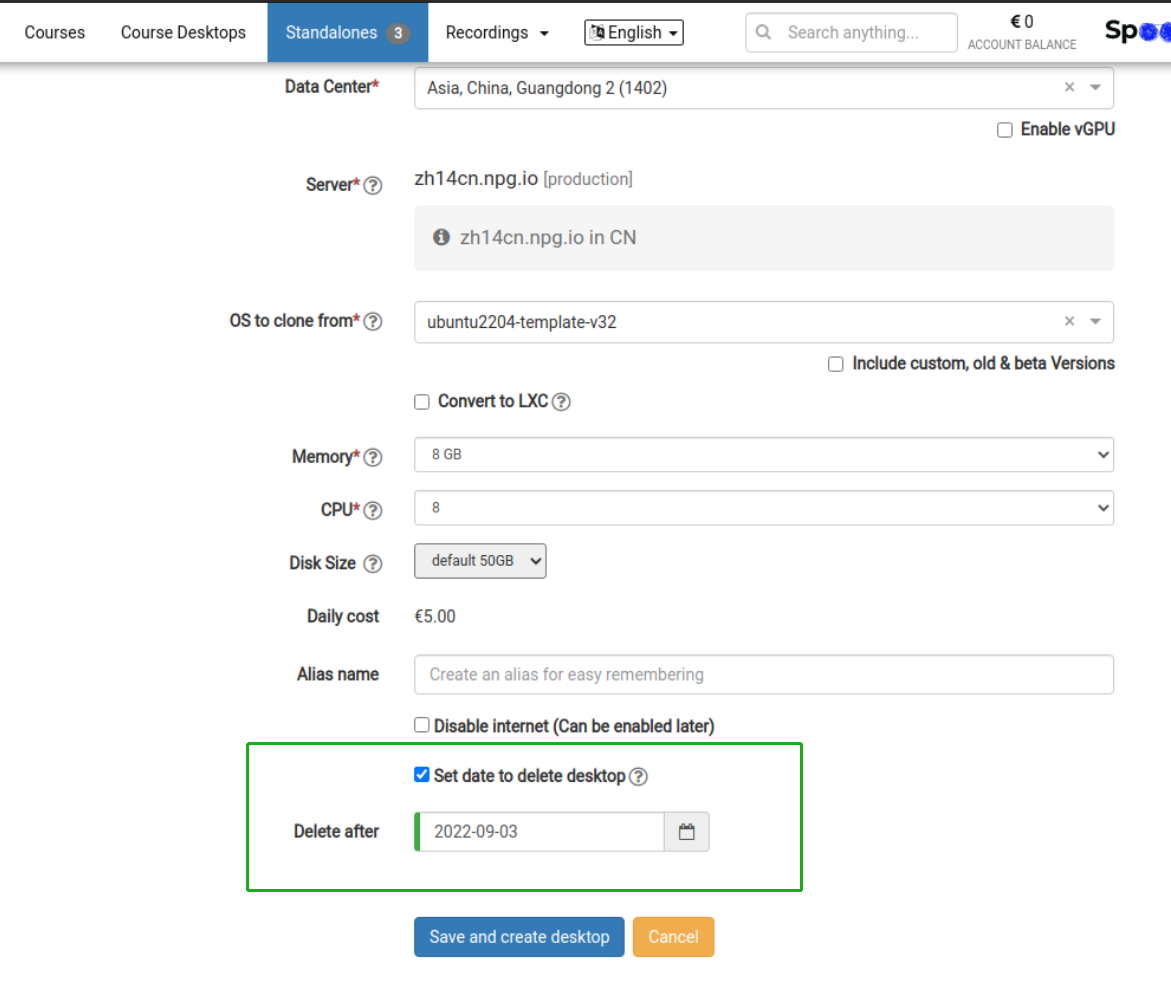
-
From the Options menu, schedule a deletion date for the standalone
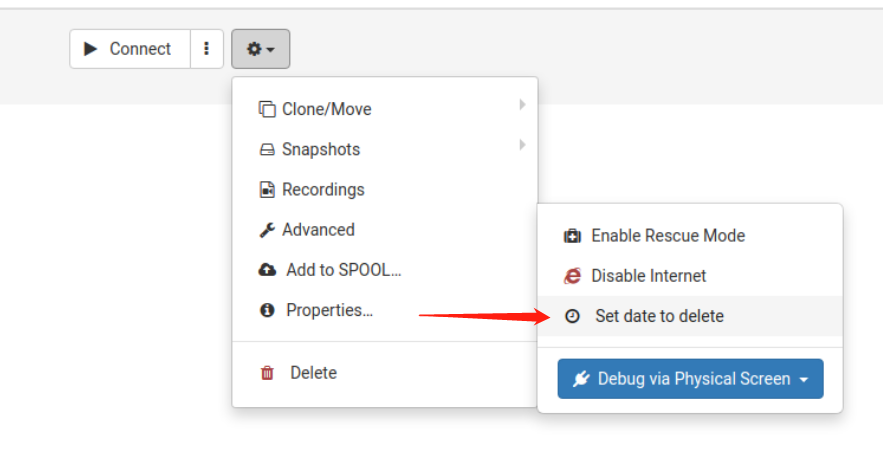
How to remove a scheduled deletion date
1. In the Options menu, click "Scheduled to delete on"
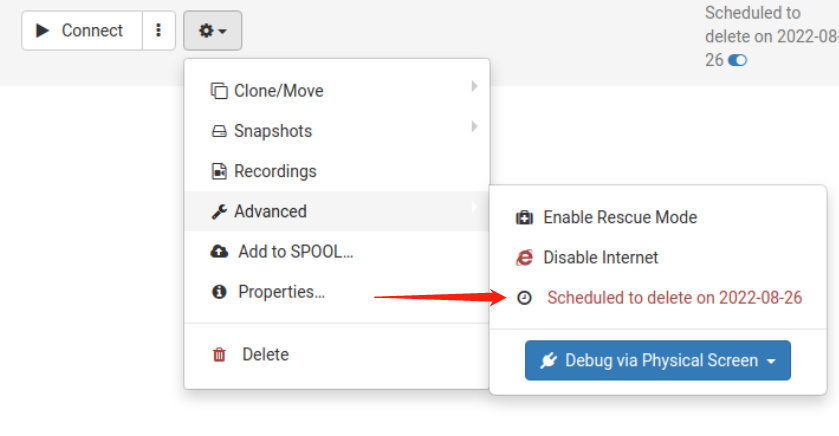
2. Hover over and click the blue toggle icon to instantly remove the deletion date
